Cypress BlogSharing our challenges, mistakes, hacks, successes, opinions and newshttps://www.cypress.io/https://www.cypress.io/favicon.icoCypress Bloghttps://www.cypress.io/blog/60en-usMon, 15 Jun 2026 17:18:00 GMTCypress Ambassador Spotlight: Alejandro Brugarolashttps://www.cypress.io/blog/cypress-ambassador-spotlight-alejandro-brugarolas/https://www.cypress.io/blog/cypress-ambassador-spotlight-alejandro-brugarolas/What motivates you to be a Cypress Ambassador?
The desire to be part of a community focused on software quality.
How do you currently help others that are either using Cypress or interested in using Cypress?
As a teacher, I teach testing concepts and how to use Cypress for end-to-end testing.
What is your favorite Cypress feature?
On one hand, I find interceptors extremely useful, but I also love how easy it is to extend Cypress's capabilities and create new plugins.
What is your favorite Fri, 12 Jun 2026 17:27:19 GMT
What motivates you to be a Cypress Ambassador?
The desire to be part of a community focused on software quality.
How do you currently help others that are either using Cypress or interested in using Cypress?
As a teacher, I teach testing concepts and how to use Cypress for end-to-end testing.
What is your favorite Cypress feature?
On one hand, I find interceptors extremely useful, but I also love how easy it is to extend Cypress's capabilities and create new plugins.
What is your favorite "Cypress Best Practice" and why?
I believe the real power lies in simplicity. That's why my favorite best practices are the ones that are easiest to implement but have the biggest impact, like avoiding dependencies on the results of previous tests and not using explicit waits in our code.
Outside of work, what are your favorite things to do (hobbies, passions, etc.)?
I enjoy hiking, playing board games, and simply meeting up with friends for a coffee at a bar, telling the same stories we've already told each other a thousand times.
What is one professional milestone you are proud of?
I think my biggest achievement is being able to work in something I truly enjoy and feeling happy with the career path I chose.
For new users - what is the best way to "get started" with Cypress?
To learn any technology, the best approach for me is to start with the "Getting Started" guide on the official website, and in this case, Cypress is no exception.
What is your favorite quote or saying?
"Luck is the intersection of preparation and opportunity".
Jenna BeckettHow to Connect an AI Agent to a Live Cypress Test Sessionhttps://www.cypress.io/blog/connect-an-ai-agent-to-a-live-cypress-test-session/https://www.cypress.io/blog/connect-an-ai-agent-to-a-live-cypress-test-session/If you've used Cypress Cloud MCP, you know what it looks like when your agent triages a CI failure on its own: no copy-pasting, no context switching.But what about when you're developing locally? When a test fails in cypress open, your agent is still on the outside. It can't see the runner, the DOM, or what the app looked like when it broke. You're still the one relaying that information.
Connecting the Chrome DevTools MCP to your Cypress session changes that. Your agent gets direct access toFri, 22 May 2026 21:37:22 GMT
If you've used Cypress Cloud MCP, you know what it looks like when your agent triages a CI failure on its own: no copy-pasting, no context switching.
But what about when you're developing locally? When a test fails in cypress open, your agent is still on the outside. It can't see the runner, the DOM, or what the app looked like when it broke. You're still the one relaying that information.
Connecting the Chrome DevTools MCP to your Cypress session changes that. Your agent gets direct access to the runner, the DOM, and your app's state at the moment of failure, so it can work from actual evidence rather than your description of the problem.
Seeing It in Action
Here's what happens in the video above:
- Cypress started in open mode with Chrome — one test failed because a to-do item was not successfully deleted from the list
- The agent queried the live browser — returned "6 passed, 1 failed" and the error of the failed test
- The agent reviewed the git diff — the branch history revealed the test needed to be updated, not the app
- The agent applied the fix — Cypress detected the file change and hot-reloaded the spec automatically
- Test went green — resolved with no manual intervention
What the Agent Can Work With
With Chrome DevTools MCP connected to your Cypress session, the agent has live access to:
- Test pass/fail state and error messages — queried directly from the live runner, not relayed by you
- DOM state at the point of failure — what the app actually looked like, not a description of it
- Console logs and network request data — useful for diagnosing failures that aren't purely about selectors or assertions
- Cypress command logs — the full sequence of what ran before the failure
Alongside that, you can point your agent at the assets it already has access to, like failure screenshots, your local code, and your git history. Together, that gives it everything it needs to determine whether the test or the app needs to change.
How to Set It Up: Two Simple Steps
It is simply matching the Chrome remote debugging port between both sides. Once they share a port, the Chrome DevTools MCP can read the Cypress-controlled browser's live state.
Step 1: Configure the Chrome DevTools MCP
In your MCP config, set the Chrome remote debugging port (e.g., 59210). This tells the MCP to connect to an existing Chrome instance on that port instead of launching a new one.
Without this, it spins up a fresh Chrome that has no awareness of your Cypress session.
Step 2: Set the matching port when starting cypress open
Set the CYPRESS_REMOTE_DEBUGGING_PORT to the same port, and the Chrome DevTools MCP can read the launched Cypress browser.
CYPRESS_REMOTE_DEBUGGING_PORT=59210 cypress open --e2e --browser=chromeCYPRESS_REMOTE_DEBUGGING_PORT has been supported for many versions. If you are not on the latest Cypress version, you can still set up this connection!
How It Fits with Cypress Cloud MCP
These two tools close different loops in your workflow. Together they cover the full development cycle from local iteration before you push to post-CI triage after a run goes red.
Try It Out
- Set
CYPRESS\_REMOTE\_DEBUGGING\_PORTto a port of your choice (e.g., 59210) - Run Cypress in open mode with a Chrome browser (
cypress open) - Configure Chrome DevTools MCP so it connects to that same port
- Prompt your agent to tell you about your latest spec run
If you're not yet using Cypress Cloud MCP for your CI failures, that's worth setting up too. Once both are in place, your agent is in the loop at every stage of the development cycle.
Emily WisniewskiCypress Cloud MCP is Generally Availablehttps://www.cypress.io/blog/cypress-cloud-mcp-is-generally-available/https://www.cypress.io/blog/cypress-cloud-mcp-is-generally-available/Today, Cypress Cloud MCP is generally available!When we launched Cloud MCP in beta two months ago, we had a hypothesis: developers shouldn't have to copy-paste stack traces into a chat window to get their AI assistant to help them debug. Cypress Cloud already had all the context their assistant needed. We just needed to close the gap.
The response told us the hypothesis was right. In the 9 weeks since beta, over 500 organizations connected, and more than 1,000 developers have used it to queryWed, 20 May 2026 19:08:04 GMT
Today, Cypress Cloud MCP is generally available!
When we launched Cloud MCP in beta two months ago, we had a hypothesis: developers shouldn't have to copy-paste stack traces into a chat window to get their AI assistant to help them debug. Cypress Cloud already had all the context their assistant needed. We just needed to close the gap.
The response told us the hypothesis was right. In the 9 weeks since beta, over 500 organizations connected, and more than 1,000 developers have used it to query their Cypress Cloud data directly from AI assistants like Claude, Cursor, and GitHub Copilot.
What's changed since beta
We used the beta period to listen, and three things came back to act on before GA.
UI Coverage and Accessibility. The initial beta focused on test failures and flaky tests — what broke and why. But your AI assistant can now go further. With UI Coverage data available through MCP, you can ask your agent which parts of your application aren't covered by tests at all, not just which tests are failing. And with Cypress Accessibility integrated, your agent can triage violation reports, group issues by severity, and suggest fixes — the kind of work that used to mean a long morning in a separate tool.
OAuth authentication. Setting up Cloud MCP in beta meant generating a personal access token, copying it, and managing rotation. We heard that it was friction, especially for teams rolling this out across multiple developers. OAuth is now the recommended authentication method. Add the server URL, sign in through your browser, and your client manages the session automatically for 30 days. No tokens to configure or to keep track of. Personal access tokens still work for clients that need them, but most won't.
What you can do with it today
The honest pitch is this: instead of navigating to Cypress Cloud, finding the run, scanning the failures, building a mental model, and switching back to your editor. Your assistant does that work, and you stay in flow.
Some prompts that reflect how people are actually using it:
- "What failed in my last CI run on main and what's the root cause?"
- "Which parts of the checkout page don't have UI Coverage?"
- "Summarize the critical accessibility violations from my latest run and group them by what I can fix now versus what involves third-party components."
- "Which tests were flaky in the last run?"
These aren't impressive because the prompts are clever. They're impressive because the answers come back grounded in your actual run data, not a guess.
What we're building toward
One piece of feedback from beta users has been consistent: they want their AI to see not just the error, but the full execution context — the DOM state, the network requests, the moment before the failure. That's what Test Replay captures, and we're running experiments to expose that data.
Behind all of this, though, is the bigger question: how do we give developers the right testing context, in the right place, fast enough that AI assistance actually changes how the work feels? We're exploring more than one answer. The constant across all of them is the same goal — helping you act quickly, with confidence, so you can focus your time where it matters.
Ready to close the context gap?
Cloud MCP is free on all Cypress Cloud plans. Enable the integration from your organization's Integrations page, authenticate with OAuth or a personal access token, and add the server URL to your AI client: https://mcp.cypress.io/mcp.
Full setup instructions are in the Cypress Cloud MCP documentation. If you set it up during beta, you don't need to do anything because you're already on GA.
Want to see it in action? Check out our MCP Beta blog post or Normia Pop's demo in this March Bug Bash episode.
Emily WisniewskiCypress Accessibility and AI Agentshttps://www.cypress.io/blog/cypress-accessibility-and-ai-agents/https://www.cypress.io/blog/cypress-accessibility-and-ai-agents/We are excited to share our latest guide on Working with AI Agents, designed to help teams accelerate their accessibility workflows.Cypress Accessibility runs in the background in Cypress Cloud as your runs are recorded, automatically capturing thousands of snapshots of your application states and processing them with accessibility checks.
This data was recently made available through Cypress Cloud MCP, making it easy to get access to the specific pages, rules, and elements that are showing aTue, 21 Apr 2026 14:23:08 GMT
We are excited to share our latest guide on Working with AI Agents, designed to help teams accelerate their accessibility workflows.
Cypress Accessibility runs in the background in Cypress Cloud as your runs are recorded, automatically capturing thousands of snapshots of your application states and processing them with accessibility checks.
This data was recently made available through Cypress Cloud MCP, making it easy to get access to the specific pages, rules, and elements that are showing accessibility issue. The guide focuses on patterns you can use with the MCP, plus other ways to integrate AI into your accessibility practice.
While LLMs can't fully solve your accessibility issues independently, they can propose solutions and tradeoffs, triage findings effectively based on your specific team and company needs, and offer some in-browser assistance to understand what's been reported.
Manage results with Cypress Cloud MCP
The Model Context Protocol (MCP) allows AI agents to pull run metadata and accessibility summaries directly from Cypress Cloud. You can prompt your LLM to analyze the latest results, group violations by their relevance and "solvability", and even generate a remediation action plan tailored to your team's specific roles and responsibilities - such as developer-focused issues, design issues, and content issues.
Read more about using Cloud MCP accessibility tools.
Optimize Reports for AI Efficiency
To get the most out of an AI assistant, context is key. This section outlines how to refine your Cypress configuration to provide clearer signals to your agent. By implementing lightweight component identification techniques—such as adding meaningful data attributes—you can help AI agents accurately locate failing elements within your codebase without parsing unnecessary HTML.
Read about how the new components configuration saves time and context for your team.
Debug Directly with Browser LLM Tooling
Leverage the power of in-browser AI, such as Google Chrome’s Gemini assistant, to debug issues in real-time. By using the "Print-to-Console" shortcut in Cypress Cloud, developers can jump directly to failing elements in the DOM and start a diagnostic chat to explore root causes and potential fixes immediately.
See this workflow step-by-step, showing how to have a live DOM debugging session with your LLM directly working on the page, exactly as it was in your CI environment when the issue was detected.
New: Expanded Accessibilty Analytics
Your Enterprise Reporting area now contains more breakdowns of your cross-project accessibility data - tracking individual rules and severity categories over time and showing when something has gone off track. Combining this view with the LLM workflows above helps you easily zoom in from a months-long trend into comparing specific runs, tracking root causes, and determining team ownership.
See what's new in how to track progress and spot trends.
Ready to transform your accessibility workflow?
Explore the full Working with AI Agents guide, or request a trial of Cypress Accessibility to get started.
The Cypress TeamHow the Cypress Cloud Errors tab helps you triage fasterhttps://www.cypress.io/blog/how-the-cypress-cloud-errors-tab-helps-you-triage-faster/https://www.cypress.io/blog/how-the-cypress-cloud-errors-tab-helps-you-triage-faster/The Errors tab in Cypress Cloud groups test failures by error type so you can tell if you have one problem or forty. Now with expanded defaults, accurate flaky test status, and direct Test Replay links.Thu, 16 Apr 2026 19:31:22 GMTAfter a run fails, the first question is rarely "which tests failed?" It's "why did they fail, and how many different problems am I actually dealing with?"
Those are different questions, and the answer changes what you do next. Forty failing tests with forty distinct error messages means forty separate problems to investigate. Forty failing tests with the same error message means one problem to fix.
That model is what makes the Errors tab within each Cypress run useful for triage. Each error group shows the error message once, then lists every test attempt where that error occurred. That includes retries. If a flaky test failed three times before eventually passing, each of those failed attempts appears in the group. That matters because it tells you how prevalent the error actually is. An error that appears across dozens of retry attempts in otherwise passing tests is a different kind of problem than one that causes clean, consistent failures.
But until now, reading the Errors tab required more effort than it should. Errors loaded collapsed, so you had to expand each group manually. Every test in the list appeared as failed regardless of whether it had actually flaked. And there was no direct path to Test Replay without navigating to a different view.
What changed in the Errors tab
The latest update to Cypress Cloud addresses all of this.
Test Replay is now accessible directly from each error
When Test Replay is available, error rows now include a direct link to the replay for that test. Clicking the row opens the test drawer and the Test Replay link takes you directly to the replay to review.
This eliminates a step that previously required navigating out of the Errors tab, locating the test in a different view, and then opening the replay from there.
Test status now shows flaky tests
Each error group lists every test attempt where that error appeared, including retries when retries are enabled. Before this update, every attempt in that list showed a failed status icon, even if the test had ultimately flaked and passed rather than failed. That made it harder to understand whether an error was causing consistent failures, intermittent ones, or both.
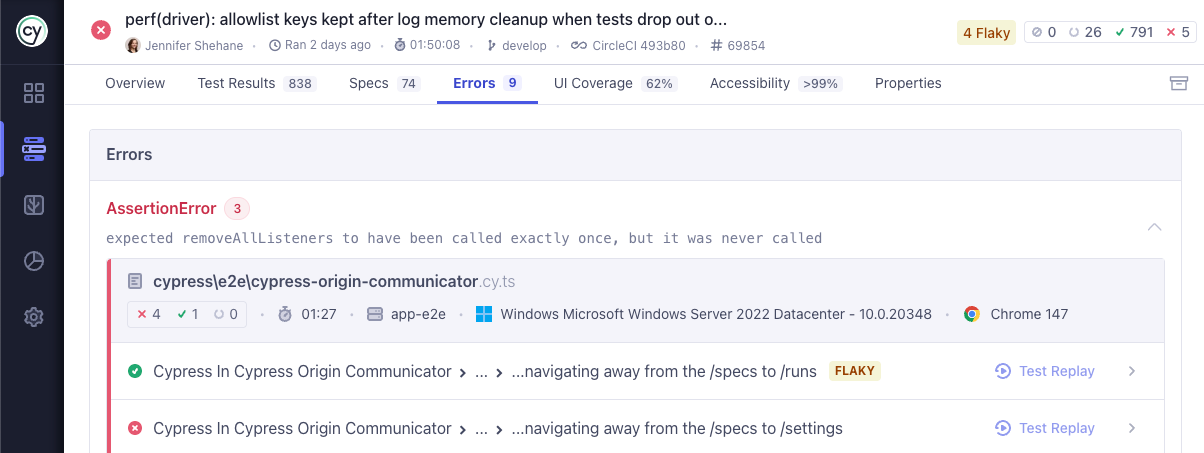
Errors are now expanded by default
Previously, the Errors tab loaded with every error row collapsed. You had to click into each one to see what it contained. Now, errors are expanded when the tab loads, so you see the full picture immediately.
What to do next
The next time you review a failed run in Cypress Cloud, open the Errors tab. The layout will look different: errors expanded, status accurate, environment context visible, and Test Replay one click away when capture is on.
Jennifer ShehaneCloud MCP Now Includes Cypress Accessibilityhttps://www.cypress.io/blog/cloud-mcp-now-includes-cypress-accessibility/https://www.cypress.io/blog/cloud-mcp-now-includes-cypress-accessibility/Use AI agents to take quick, actionable next steps on accessibility issues.Mon, 13 Apr 2026 21:44:16 GMTWe are excited to announce that Cypress Cloud MCP (Model Context Protocol) now supports Cypress Accessibility, bringing your accessibility report data directly to AI agents. Cloud MCP already connects AI coding assistants to Cypress Cloud to streamline test debugging, and this new integration allows AI agents to autonomously retrieve high-level accessibility reports.
This means your teams can use AI agents to take quick, actionable next steps on accessibility issues, including:
- Issue triage and prioritization
- AI-assisted fixes
- Feedback cycles to confirm fixing one issue didn’t introduce another
Teams can use powerful prompts like:
- “Summarize the most critical Cypress accessibility issues from my latest run on the main branch.”
- “Group accessibility issues by impact and suggest fixes.”
- “Split the issues up into ones that can be solved right now, and ones that involve third-party widgets, external libraries, or design and content questions.”
- “Tell me which code changes in this branch are related to issues in the report.”
Availability
This feature is automatically available to organizations with Cypress Accessibility enabled and to any organization with an active Cypress Accessibility trial.
To see more examples and learn how to get started, check out this blog post from Koen Van Belle the Cloud MCP docs. If needed you, can also request a trial of Cypress Accessibility.
The Cypress TeamCypress AI Skills: Get More From Your AI Coding Assistanthttps://www.cypress.io/blog/cypress-ai-skills-get-more-from-your-ai-coding-assistant/https://www.cypress.io/blog/cypress-ai-skills-get-more-from-your-ai-coding-assistant/AI coding tools can write Cypress tests. What they tend to struggle with is writing them well.Ask an AI assistant to generate a Cypress test and you'll probably get something that runs. But look closer and you'll find CSS class selectors instead of data-cy attributes, cy.wait(3000) instead of network aliases, and no awareness of the custom commands your team already built. It's a Cypress test — it's just not the kind of Cypress test you'd write yourself.
That's the problem Cypress AI Skills iWed, 08 Apr 2026 19:40:02 GMT
AI coding tools can write Cypress tests. What they tend to struggle with is writing them well.
Ask an AI assistant to generate a Cypress test and you'll probably get something that runs. But look closer and you'll find CSS class selectors instead of data-cy attributes, cy.wait(3000) instead of network aliases, and no awareness of the custom commands your team already built. It's a Cypress test — it's just not the kind of Cypress test you'd write yourself.
That's the problem Cypress AI Skills is designed to help with.
What Skills actually are
Skills are instruction sets that tell your AI coding assistant how to approach a specific Cypress workflow. What conventions to follow, what patterns to prefer, what to avoid.
They're not magic. They don't guarantee perfect output. What they do is steer AI toward better decisions more often — the same way a style guide helps a new contributor write code that fits the project, even if they don't follow it perfectly every time.
Skills are published in the open-source Cypress AI Toolkit and work with any AI coding assistant that supports custom instructions, like Cursor, Claude Code, and GitHub Copilot.
Two skills to start
cypress-author — guidance for creating, updating, and fixing Cypress tests
This skill instructs your AI agent to read your project first — config, existing specs, custom commands, fixtures — before generating anything. The goal is output that fits your project's conventions rather than falling back on generic patterns. That means preferring stable selectors over CSS classes, reusing your existing helpers instead of reinventing them, and sticking to APIs your version of Cypress actually supports.
How well that lands depends on the model and context, but the skill consistently pushes output in a better direction than going without it.
cypress-explain — guidance for understanding tests and cypress concepts
Reach for this when you're trying to understand what a test suite covers, onboarding someone new, or figuring out why a test is flaky before rewriting it. The skill instructs the AI to use accurate Cypress terminology, flag brittle selectors and timing assumptions, call out missing assertions, and catch misleading test titles — the kinds of things an experienced Cypress developer would check for.
Why this matters at the team level
Every developer on your team prompts differently. Different vocabulary, different levels of Cypress experience, different habits. Skills give everyone a shared baseline of Cypress knowledge to draw from, which helps reduce the variance in what your AI tools produce. It won't make output perfectly consistent, since the person prompting and the model still matter, but it raises the floor.
What this looks like in practice
You can invoke a skill explicitly with a slash command (/cypress-author, /cypress-explain) or let your AI tool pick it up automatically based on your prompt.
Here are a few examples of how you can work with skills:
Scaffold from requirements:
Review the acceptance criteria for the "Mark all complete" flow:
- Clicking the checkbox toggles every task's completed state
- All tasks move to the "Completed" list
- The footer shows 0 active items
Check if these are already tested. If not, scaffold tests for any gaps.
Audit a spec for quality issues:
/cypress-explain Review cypress/e2e/dashboard.cy.ts. Flag tests that are likely
flaky, over-coupled, or missing meaningful assertions.
Generate tests using cy.prompt():
Write a new Cypress test that uses cy.prompt() to:
1. Visit the shopping cart page
2. Remove the "Vegetables" item from the cart
3. Increase the quantity of the "Chocolate" item to 6
Get test intent summaries:
Summarize what the tests in cypress/e2e/onboarding.cy.ts cover in plain language,
as if explaining it to a product manager.
Get started
Install all skills with one command:
npx skills add cypress-io/ai-toolkit
For manual installation, tool-specific setup, and troubleshooting, see the Cypress AI Skills documentation.
Part of a broader picture
Skills handle the authoring side — giving your AI better guidance when it's writing or reviewing tests. For the full picture of how AI works across Cypress, from self-healing selectors to CI failure debugging, see Cypress AI features.
Open source, open to contributions
The Cypress AI Toolkit is open source. If a skill gets something wrong or you've built an improvement, open an issue or a PR.
Emily WisniewskiCypress Test Replay now captures canvas elements by defaulthttps://www.cypress.io/blog/cypress-test-replay-now-captures-canvas-elements-by-default/https://www.cypress.io/blog/cypress-test-replay-now-captures-canvas-elements-by-default/Canvas capture is now on by default in Test Replay for all projects in Cypress Cloud. If your tests interact with canvas elements, you no longer need to contact Cypress to enable capture. Here's what changed, what gaps remain, and how to adjust the setting if your project needs it.Fri, 03 Apr 2026 17:40:53 GMTYou're stepping through a failing test in Test Replay. Your test interacted with a canvas element. But instead of seeing what the canvas rendered, you see a diagonally striped placeholder. No explanation. No setting to toggle. Just a gap where the debugging context should be.

That placeholder was the default experience for any project that hadn't been manually opted into canvas element capture. To enable it, teams had to contact us, and many didn't know to ask. This rollout changes that.
Canvas element capture is now on by default in Cypress Test Replay for all projects in Cypress Cloud.
Why canvas element capture wasn't on by default
When we launched canvas capture, we defaulted it to off. Large or numerous canvas elements could slow down test recording at scale. Without production data to bound that risk, we made capture opt-in and required manual enablement on a project-by-project basis.
That tradeoff made sense as a starting point. Since enabling canvas capture for teams who requested it, we haven't seen very many test performance issues. What we have consistently observed is the cost of the conservative default: teams unable to debug canvas-related failures in Test Replay because the elements weren't there.
What changes
Canvas capture is now enabled for every project in Cypress Cloud. You don't need to update your Cypress version or change your configuration.
If your tests interact with canvas elements, you'll see those elements rendered in Test Replay as they appeared during the test, rather than the striped placeholder. This applies whether your canvas testing involves charts, data visualizations, interactive graphics, or other canvas-rendered UI.
Because some projects do involve large or numerous canvas elements where test performance may be a concern, we've added a project-level toggle to disable canvas capture. To find it, open project settings in Cypress Cloud and look in the Test Replay section. The canvas toggle sits below the main Test Replay recording toggle.
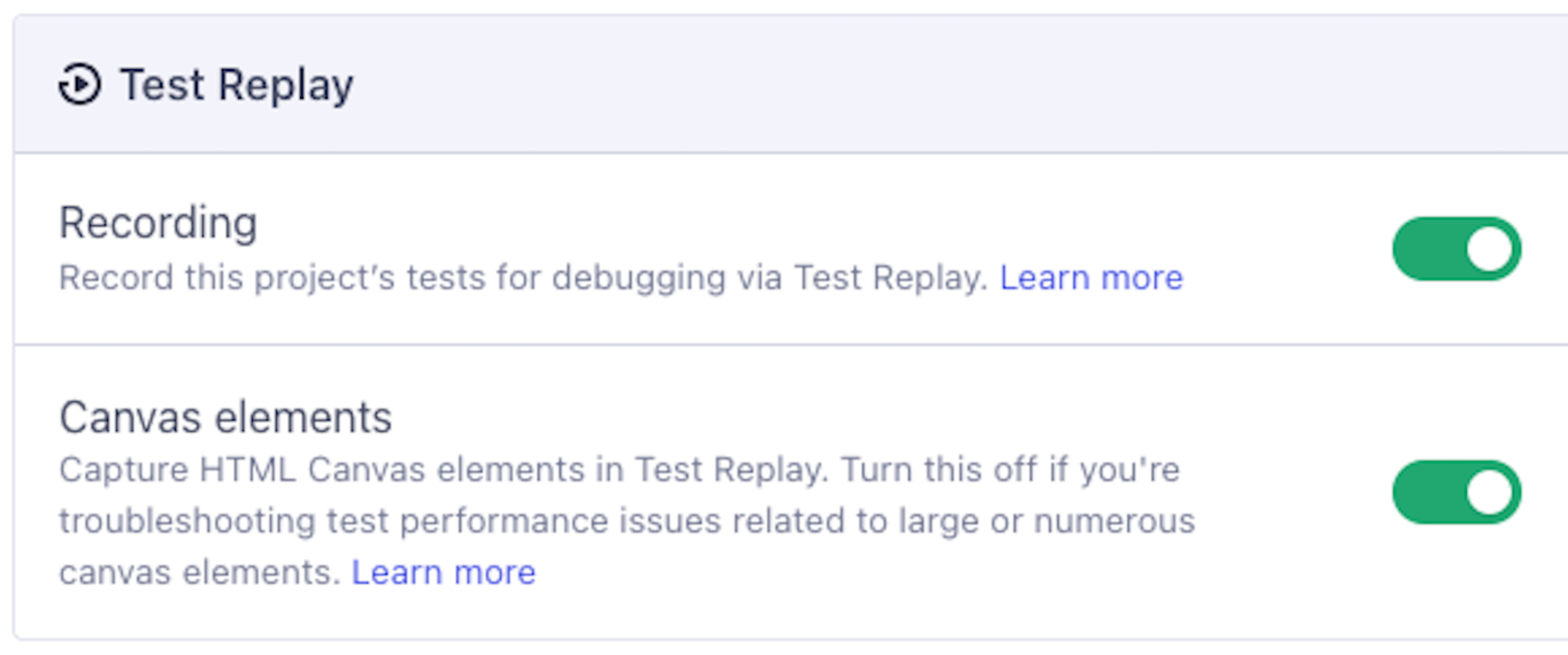
What this change doesn't cover
Two gaps still remain around canvas in Test Replay:
- Shadow DOM canvas: Canvas elements rendered inside Shadow DOM are still not shown in Test Replay.
- Cypress versions before 15.5.0: Canvas capture requires Cypress 15.5.0 or later.
If your tests interact with Shadow DOM canvas, the behavior in Test Replay is unchanged by this rollout. For the full list of what is and isn't captured, see the Test Replay "What is not captured" documentation.
What you need to do
For most teams: nothing. Canvas element capture is on. Test Replay will show canvas elements where it used to show placeholders.
If you want to confirm the setting or adjust it, go to project settings in Cypress Cloud and check the Test Replay section.
If you encounter test performance issues and suspect canvas capture is a factor, disable the toggle in project settings and contact Cypress support with specifics. We want to understand those cases.
For the full documentation on canvas behavior in Test Replay, including how the toggle works and what's not yet captured, see the Test Replay canvas elements documentation.
Jennifer ShehaneWrite Cypress tests in plain English: AI-powered test automation is now in betahttps://www.cypress.io/blog/write-cypress-tests-in-plain-english-ai-powered-test-automation-is-now-in-beta/https://www.cypress.io/blog/write-cypress-tests-in-plain-english-ai-powered-test-automation-is-now-in-beta/Writing tests has always required a translation step. You know exactly what the test should do. Getting that into code is the part that slows everything down. You stop mid-flow to find the right selector, check whether the element has a stable attribute, write the command, run it, fix it, run it again. By the time the test exists, you have lost the thread of whatever you were actually building.cy.prompt was built to remove that step. Describe what you want in plain English and Cypress handles Tue, 24 Mar 2026 18:26:36 GMT
Writing tests has always required a translation step. You know exactly what the test should do. Getting that into code is the part that slows everything down. You stop mid-flow to find the right selector, check whether the element has a stable attribute, write the command, run it, fix it, run it again. By the time the test exists, you have lost the thread of whatever you were actually building.
cy.prompt was built to remove that step. Describe what you want in plain English and Cypress handles the rest. It is natural language test automation built directly into the tool you are already using.
cy.prompt([
 'Fill in the email field with test@example.com'
 'Click the sign up button'
 'Confirm "Create Account" is visible'
])
We launched cy.prompt as an experimental feature at CypressConf 2025 last October. Over the last five months, we shipped improvements based on what real teams ran into. Today, cy.prompt is in beta. It is significantly more capable than what launched in October and available to everyone with no configuration required.
If you tried it before and ran into walls, this is worth a second look. If you have been looking for a way to write tests without code, this is where to start.
A lot changed. Here is what matters.
The experimental flag is gone starting in Cypress 15.13.0. If you had experimentalPromptCommand: true in your config, remove it. cy.prompt is on by default.
Beyond the flag, here is everything that changed during the experimental period and ships with beta today.
You can now describe where an element is, not just what it is
One of the most common failure modes during experimental was ambiguous pages. Two login buttons. Multiple submit forms. cy.prompt would pick one and sometimes get it wrong.
Beta adds positional context to step descriptions. You can now tell Cypress exactly where on the page to look:
cy.prompt(['Click the Login button in the header'])
cy.prompt(['Click the Submit button in the checkout form'])
cy.prompt(['Select the Delete option in the actions menu'])
Cypress respects that location when selecting elements. Your steps are more precise, and they hold up better when layouts change elsewhere on the page.
You can see exactly what ran when a step fails
Before, when a cy.prompt step failed, you were left guessing. Was the description unclear? Was the generated code targeting the wrong element? There was no easy way to know.
In beta, you can click to view the exact code that was generated and executed for failed prompt where the command failed. That one change makes debugging feel different. Instead of re-running and hoping, you read what happened and decide whether tweaking the step description would fix it.
Generated code is now visible even without sourcemaps
If sourcemaps are not set up in your project, the Code modal and the More Info Needed modal now show the generated code for your cy.prompt commands. Previously, users without sourcemaps configured had no visibility into what Cypress had generated at all.
Saving edits back to your source file is still not available without sourcemap data because we don't know the exact location of your files. But you can see, copy, and work with the generated code directly.
Text-based targeting with cy.contains
When the most reliable way to find an element is its visible label, cy.prompt now uses that. Typing click the "Sign in" button maps to cy.contains under the hood, using the text as the primary identifier. This is especially useful for elements where the selector is always unstable but the label is not.
Non-existence assertions
Asserting that something is not on the page is now supported. Steps like verify #error-message does not exist and confirm the "Reset" button does not exist work reliably when you use an exact selector or text-based targeting.
Waiting for network requests
cy.prompt now supports steps like wait for the @users request to finish, which maps to Cypress's native cy.wait() with an alias. Define the alias in your code ahead of time and cy.prompt can wait for it. This matters for data-heavy flows where you need the network to settle before asserting anything.
Keyboard, hover, and trigger interactions
Hover states, keyboard navigation, and trigger events are how users interact with dropdowns, tooltips, and interactive components. They are not edge cases. Steps like hover over the "Help" button, press "Tab" to focus the next field, and press "Enter" to choose the current selection all work now.
Scrolling elements into view
Tests on long pages or with lazy-loaded content need to scroll before interacting. cy.prompt now handles this automatically, bringing elements into the viewport rather than failing silently when something exists but is out of view.
Timeout and force options in plain English
Real applications have timing quirks. Some interactions need to bypass Cypress's default actionability checks. You can now specify these directly in your step descriptions:
cy.prompt('go to "/users" with a timeout of 10 seconds')
cy.prompt('force click the submit button')
cy.prompt('force type "text" in the hidden input')
Expanded assertions
The first release covered basic assertions. Beta adds have.attr, have.css, have.data, have.prop, and more. More assertion coverage means fewer reasons to fall back to hand-written commands.
Selector priority control with Cypress.ElementSelector
If your team has a preferred selector strategy, you can define it with the Cypress.ElementSelector API and cy.prompt will use it. The code it generates will match your project's conventions rather than defaulting to our selector strategy.
Self-healing selectors that show their work
cy.prompt self-heals when an element it needs to interact with has changed since the last time that step ran. Self-healing tests are only useful if you can trust them. What makes cy.prompt different is that you can see exactly what happened.
When a step self-heals, Cypress flags it at every level of the Command Log: the test entry, the cy.prompt command, and the individual step. Clicking into a self-healed step exposes detailed logs in Developer Tools showing:
- Resolved element: The selector and exact element
cy.promptinteracted with - Cached elements: Previously resolved elements that
cy.promptchecked during self-healing - Self-healed status: Whether the step healed, and how
Cypress uses two distinct healing paths:
- Self-healed via cache: The selector changed, but
cy.promptresolved the correct element using its existing cached mapping. No AI call was made. - Self-healed via AI: The selector changed and there was no matching cache entry.
cy.promptcalled the AI model to identify the correct element based on your original step's intent. If the resolved element does not appear in the cached list, that is how you know this path was used.
Sensitive data is handled automatically
When cy.prompt reads your application's DOM to determine how to interact with elements, it automatically excludes values from password, credit card, and hidden inputs before anything is sent to the AI model.
Stability under real load
Adding users stresses any system in ways that internal testing does not anticipate. We made several improvements to handle a larger volume of requests as well as edge cases that surfaced as more teams put cy.prompt into real projects. Cache behavior under failure conditions, DOM size limits that were causing token overruns in complex applications, and targeting logic for pages with repeated elements all received meaningful work during this period. The feature you are getting in beta is not the same one that shipped at CypressConf.
What beta means for pricing
cy.prompt is free to use today. That includes all AI-powered end-to-end testing capabilities: natural language steps, self-healing selectors, and generated code visibility. We intend to spend the beta period understanding how teams actually use the feature before attaching a cost to it. That work is ongoing. When pricing does come, we will give you clear notice before anything changes.
Get started
Remove experimentalPromptCommand from your config and upgrade to Cypress 15.13.0 or later. That is the entire migration for anyone who was on experimental.
If you are new to cy.prompt, upgrade and start writing steps. Nothing to configure.
describe('authentication flow', () => {
 it('signs in with valid credentials', () => {
 cy.prompt([
 'visit https://cloud.cypress.io/login',\
 'type "user@example.com" in the email field',
 'type {{password}} in the password field',
 'click the login button',
 'verify we are redirected to the dashboard',
 ],
 {
 placeholders: { password: 'secret123' },
 }
 )
 })
})
The cy.prompt documentation covers the full command API, caching behavior, and tips for writing effective plain English Cypress tests across every workflow.
Tests that never get written are not a testing problem. They are a coverage problem, a confidence problem, and eventually a production problem. The bottleneck has always been the gap between knowing what to test and being able to write it fast enough to matter. cy.prompt beta is our most direct attempt to close that gap. Try it in the next test you would have otherwise skipped.
Today, we are releasing the beta of Cloud MCP — a remote Model Context Protocol (MCP) server that connects AI coding assistants and AI Agents directly to Cypress Cloud.
If you've ever finished a CI run, watched it go red, and then spent the next ten minutes copy-pasting stack traces into a chat window, you know exactly what problem we're solving. We're bridging the context gap in AI-driven development.
The context gap Tue, 17 Mar 2026 15:11:57 GMT
Today, we are releasing the beta of Cloud MCP — a remote Model Context Protocol (MCP) server that connects AI coding assistants and AI Agents directly to Cypress Cloud.
If you've ever finished a CI run, watched it go red, and then spent the next ten minutes copy-pasting stack traces into a chat window, you know exactly what problem we're solving. We're bridging the context gap in AI-driven development.
The context gap slowing down test debugging
AI coding assistants have forever changed how fast developers work. Code gets written, reviewed, and shipped faster than ever, which makes "old" frictions feel even more painful. The biggest bottleneck? The moment a test fails in CI.
Standard LLMs suffer from a “context gap”. Your assistant can’t see the test runtime. It doesn't know which specs failed, what errors were thrown, or the state of your application's DOM before the failure. You’re forced to do the work yourself: navigating to Cypress Cloud, finding the failed test, copying the error, switching back to your editor, pasting it in, explaining the context, and then iterating through that loop again and again.
It's a slow, manual debugging loop that shouldn't exist. Cypress Cloud already has exactly what your AI needs. It knows every failed command, every error, and every stack trace. Cloud MCP simply gives your assistant the "eyes" to see that data, turning a basic chatbot into a high-functioning AI agent.
That's the gap Cloud MCP closes.
What Cloud MCP does
Cypress Cloud MCP is a remote server that gives AI the tools to query Cypress Cloud directly for real-time run statuses, failure details, error messages, stack traces, and flaky test reports. When you ask your assistant about your tests, it gets a specific answer based on what actually happened in your run, not a guess.
The initial toolset is focused on the two questions that matter most after a run: do I need to fix something, and where do I start?
The Agentic Advantage: Solving 50 CI failures in 60 seconds
We've all been there — you push what feels like a quick fix, open the PR, and your heart sinks when you see how many tests failed in CI. What should have been a fast merge suddenly looks like a long afternoon of debugging.
That recently happened to me. I pushed a small change that triggered over 50 Cypress test failures. Since I already had Cloud MCP configured, instead of opening Cypress Cloud to start the manual triage, I asked my AI agent what was failing. In less time than it took to check my Slack notifications, I had the root cause: a selector change that had cascaded across more tests than I expected. One fix, done.
That failure probably wouldn't have taken long to track down manually in Cypress Cloud. However, because the AI had direct access to the failure metadata, there was no context switching. I didn’t have to find the run, scan the failures, and build a mental model before switching back to my editor; the assistant did it all for me.
That’s what Cloud MCP truly solves: it closes the context gap by bringing the data to you. It’s not just about how fast you can debug, but where your attention stays. It keeps you in your flow while the AI handles the triage in the background.
Getting started
Cloud MCP integrates with any AI coding assistant or agentic environment that supports remote MCP servers over HTTP, including Google Anitgravity, Claude, Cursor, GitHub Copilot, and OpenAI’s Codex CLI.
Step 1: Enable Cloud MCP for your organization. An admin enables the integration from the Integrations page in Cypress Cloud.
Step 2: Generate a personal access token. Each user creates a token from their Cypress Cloud profile under the MCP Personal Access Token section. Because this is a user-scoped token, the AI only sees the projects and test data you already have permission to access.
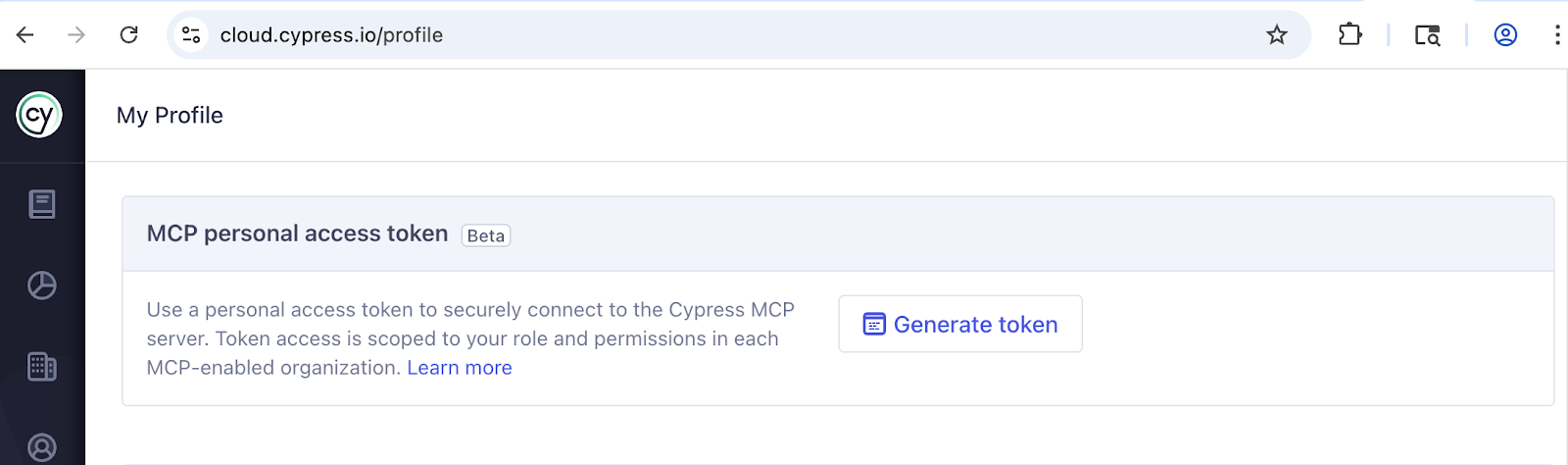
Step 3: Add the remote server to your AI client. The server URL is https://mcp.cypress.io/mcp. Follow our Cloud MCP configuration documentation for step-by-step instructions for your specific AI tools.
The moment you connect, your AI assistant stops guessing and starts knowing. It gains instant, real-time insights into your Cypress Cloud results, including failure logs, stack traces, and Test Replay links, so it can diagnose test issues right away.
We’re listening: Building the future of AI testing
This is a beta, and we’re moving fast. Our first set of tools focuses on the two most critical workflows: root-cause analysis and investigating flaky tests.
But we don't plan on stopping there. We are working with our Alpha adopters to turn "AI assistants" into "Autonomous Dev Agents." We’ve heard their feedback loud and clear. To truly trust your AI’s analysis, it needs more than just a stack trace. We are currently exploring ways to expose network requests, test command logs, and historical flake data directly to the MCP server to ensure your agents have the full context they need to act autonomously.
Who can use Cloud MCP
Cloud MCP is available for free to all Cypress Cloud plans, including the Starter plan. We believe AI-assisted debugging should be accessible to every developer building with Cypress.
If you already record your runs to Cypress Cloud, you can start using Cloud MCP today.
Ready to close the context gap?
Read the Cloud MCP documentation to enable the integration and connect your AI assistant. Need ideas to get started? Check out Normia Pop's demo in the latest Bug Bash episode.
Updates
Cypress Cloud MCP reached general availability on May 20th, 2026. Learn more in our GA announcement.
Emily Wisniewskicy.prompt can now wait for network requestshttps://www.cypress.io/blog/cy-prompt-can-now-wait-for-network-requests/https://www.cypress.io/blog/cy-prompt-can-now-wait-for-network-requests/cy.prompt now supports waiting for network requests by referencing aliases you've already defined with cy.intercept. You can keep your test instructions in one place, without breaking out of the prompt block to insert manual waits.Wed, 11 Mar 2026 16:30:05 GMTYou're writing a test with cy.prompt(). The flow is clean: natural language instructions, no boilerplate, AI handling the mechanics. Then you need to wait for a network request before the next assertion is safe to make.
Until now, that meant breaking out of cy.prompt. You'd write your intercept, run your prompt, stop, insert cy.wait('@users'), and then try to pick the thread back up. It worked, but it interrupted the test's readability and defeated part of the point.
Starting today, cy.prompt supports waiting for aliases you've already defined. You can reference an alias name directly inside your prompt instructions, and Cypress will handle the wait without requiring you to exit the flow.
What this looks like in practice
Define your intercept and alias as you normally would, outside of cy.prompt. Then reference the alias by name inside your prompt instructions:
cy.intercept('/users').as('users')
cy.prompt([
 'Click on the users link',
 'wait for the @users request to finish',
 'verify there is a users table visible'
])
That's the full test. The alias is defined once. The prompt references it by name. Cypress resolves the wait in the correct sequence before moving to the next instruction.
There's nothing new to learn about how intercepts or aliases work. If you already use cy.intercept with .as(), this is additive. You're just telling cy.prompt to acknowledge what you've already set up.
Why this matters for AI-assisted test writing
cy.prompt is designed to keep test intent readable in one place. When a test requires network coordination, the previous approach forced you to split that intent across multiple lines. You'd have AI-driven instructions alongside imperative waits, and the test read like two different approaches stitched together.
This change keeps coordination inside the prompt. The instructions stay in sequence. A reader can follow the test from top to bottom without needing to understand where cy.wait was inserted and why.
For teams adopting cy.prompt as part of their test authoring workflow, this removes one of the more common reasons to reach outside the prompt block.
What's required
A few things to keep in mind:
- The alias must be defined before
cy.promptruns. Define yourcy.interceptand.as()outside and above the prompt block. - Reference the alias using the
@prefix in your prompt instruction, matching the name you gave it exactly.
If the alias isn't defined before the prompt runs, the wait will fail the same way a standalone cy.wait('@missingAlias') would. The behavior is consistent with how Cypress handles aliases everywhere else.
The simplest version of something useful
This is the first iteration of network-awareness inside cy.prompt, and we want to be direct about what that means: it handles the simplest case, waiting for a named intercept before continuing, but it isn't a full network coordination layer yet.
We're shipping this now because it solves a real friction point without requiring you to change how you define intercepts. It works with patterns you already use.
We'd like to hear from you on where to take this next. What types of network behavior are you working around today? What would make cy.prompt more useful in tests that involve complex async sequences? You can share feedback by opening an issue in our GitHub repo or reach us through your usual support channel.
Try it now
If you're using cy.prompt, try referencing an alias in your next prompt. The cy.prompt documentation covers the full syntax and supported patterns.
If you haven't used cy.prompt yet, this is a good time to take a look. It's designed to reduce the gap between describing what a test should do and writing the code that does it.
Confidence comes from knowing your tests validate what users actually experience. Not just that a flow executed, but that the UI state changed appropriately, the right text appeared, and element visibility updated as expected.
This is where friction shows up.
After every meaningful interaction in a test, there's a decision to make. What changed? What should be verified? Those decisions take time. Under pressure, it's easy to write tWed, 04 Mar 2026 15:50:00 GMT
A passing test run does not always equal release confidence.
Confidence comes from knowing your tests validate what users actually experience. Not just that a flow executed, but that the UI state changed appropriately, the right text appeared, and element visibility updated as expected.
This is where friction shows up.
After every meaningful interaction in a test, there's a decision to make. What changed? What should be verified? Those decisions take time. Under pressure, it's easy to write tests that exercise a path without fully validating the outcomes along the way.
The result is a false sense of confidence. Your builds are green, but the coverage is thinner than expected.
Studio AI focuses on that gap. It doesn't attempt to understand your business rules or backend logic. It observes visible UI changes and recommends assertions grounded in what actually changed on the page.
How Studio AI Turns UI Changes Into Assertions
Studio AI extends Cypress Studio, which allows you to build and modify End-to-End tests by recording real interactions in your app. As you record interactions, Studio translates them into Cypress commands in real time.
Studio AI adds another layer by analyzing what changed in the DOM between each recorded step and generating Smart Recommendations based on those changes. Smart Recommendations are AI-generated assertion suggestions that reflect meaningful visible UI differences after an interaction.

Each Smart Recommendation includes a short explanation of what is being validated and the generated Cypress code. You can individually accept, reject, or modify recommendations, or perform bulk operations when reviewing a series of changes.
Selectors are generated automatically using Cypress’s built-in selector priority strategy. Studio AI favors stable attributes such as data-cy, data-test, data-testid, and other high-priority selectors before falling back to less stable options. This helps ensure that generated assertions are unique, readable and maintainable. If your team uses custom selector conventions, you can configure selector behavior using the Cypress.ElementSelector API.
Studio AI also provides DOM snapshots for each Smart Recommendation. You can see the before and after state of the page and the specific element being asserted. Because recommendations are added to your code immediately, you can save or run the test with Smart Recommendations included before deciding to keep them.

This makes it easier to determine whether a suggested assertion reflects something meaningful for your workflow or simply a change that doesn't require validation.
The Scope of Smart Recommendations
Studio AI compares the DOM state before and after each recorded interaction. When it detects meaningful visible changes, it generates a Smart Recommendation based on those differences. If no meaningful change is found, it clearly indicates that so you're not left guessing.
Smart Recommendations can include assertions for:
- Visibility changes
- Element existence
- Text content updates
- Form input values and selections
- Element attributes such as CSS classes and aria attributes
- URL or page title changes.
These recommendations reflect what changed in the rendered UI.
Studio AI does not have access to your application code, backend rules, or domain logic. It observes visible UI behavior and generates assertions grounded in those changes. Determining whether a change is correct for your business logic still requires intent and review.
Studio AI is also built with guardrails in place. When it reads the DOM to generate Smart Recommendations, values from sensitive field types such as password inputs, credit card fields using standard autocomplete attributes, and hidden inputs are excluded before anything is sent to the AI model. Only structural context is used.
If a test is already failing, recording and Smart Recommendations are disabled. Adding new assertions on top of a failing state can introduce confusion, so Studio requires you to resolve the failure first before continuing.
Get Started With Studio AI
Studio AI requires Cypress version 15.11.0 or later, sourcemaps enabled, and a Cypress Cloud account with a linked project configured in your cypress.config.js|ts file.
To get started:
- Update to the latest version of Cypress.
- Open the Cypress app and sign in to Cypress Cloud.
- Navigate to the spec file you want to work in.
- Start Cypress Studio by creating a new test or editing an existing one by clicking 'Edit in Studio'.
- Record test steps by interacting with your application.
- Review Smart Recommendations as they appear.
- Save and run the test to confirm the assertions behave as expected.
- Accept what fits, reject what doesn't, and edit inline as needed.
Studio AI is available on any Cypress Cloud tier, including free accounts. Smart Recommendation limits are per user, per hour.
During beta, Studio AI is included at no additional cost. Limits and pricing may change, but we are committed to keeping this feature accessible to organizations of all sizes. Any changes will be communicated before taking effect.
Using Cypress Cloud connects Studio AI to your broader testing workflow. Linking projects enables visibility into how tests are authored, reviewed, and scaled across teams. Studio AI builds on that connected foundation, helping teams establish consistent validation practices as their test suites grow.
Full setup instructions are available in the Studio AI documentation.
Faster Test Creation, Fewer Missed Validations
Studio AI does not redefine strong testing. It makes it easier to practice it consistently.
When it becomes easier to turn UI changes into meaningful assertions, validation depth increases. And when validation depth increases, release confidence becomes more predictable.
Update to the latest version of Cypress, open Studio, and try it in your workflow. Then tell us what works and what needs improvement. Your feedback will shape where we take this next.
Want to learn more about other AI features in Cypress? We have a new guide that outlines all that is available.
Jenna BeckettHow cy.prompt generates cy.contains, cy.press, and handles sensitive datahttps://www.cypress.io/blog/how-cy-prompt-generates-cy-contains-cy-press-and-handles-sensitive-data/https://www.cypress.io/blog/how-cy-prompt-generates-cy-contains-cy-press-and-handles-sensitive-data/cy.prompt now supports text-based targeting via cy.contains, keyboard interactions through cy.press, and non-existence assertions using visible content. This post covers what changed and how sensitive data in the DOM is handled automatically.Thu, 26 Feb 2026 18:19:38 GMTNot every element is best identified the same way. Sometimes the selector is what's stable. Sometimes it's the content. A few updates in this release open up new ways to write cy.prompt steps based on what actually matters in your application. Here's what changed and when to use each one.
cy.contains support via text-based targeting
When you put text in quotes inside a cy.prompt step, it now resolves to cy.contains() instead of cy.get(). This is useful when a selector is unstable but the label or content of an element is consistent.
'click the "Submit order" button'Generates:
// Prompt step 1: click the 'Submit order' button
cy.contains(/^\s*Submit order\s*$/).click();
Note the regular expression. When cy.prompt writes a cy.contains() call, it looks for an exact match on the text content. This avoids the default cy.contains behavior of matching partial strings, which can target the wrong element when similar text appears elsewhere on the page.
The test is anchored to what's visible. If the selector changes and "Submit order" is still there, the test passes without self-healing.
Drop the quotes and the behavior is different:
'click the submit button'Without quoted text, cy.prompt resolves by structural role:
cy.get('[data-test=form-submit-order']).click()That's the right call when the selector is stable but the text might not be, like text that varies by locale.
The rule of thumb:
- Quoted text when exact content is what you're asserting on
- No quotes when structure is more reliable than content
Writing cy.prompt not.exist assertions with cy.contains
not.exist assertions now work with text-based targeting, not just CSS selectors:
'make sure the "Error" message does not exist'
'confirm the ".reset" button does not exist'
Generates:
// Prompt step 1: make sure the 'Error' message does not exist
cy.contains(/^\s*Error\s*$/).should("not.exist");
// Prompt step 2: confirm the '.reset' button does not exist
cy.get(".reset").should("not.exist")
Two things worth noting.
- Natural language descriptions for non-existence aren't supported yet, so stick to quoted text or exact selectors.
- These assertions check that the element is gone from the DOM entirely, not just hidden. If you want to test visibility, use visibility language in your step instead.
Keyboard testing in cy.prompt with cy.press
If your tests cover keyboard navigation, form submission via Enter, or any interaction that a keyboard user would trigger, cy.prompt now has language for that:
'press "Tab" to focus the next field'
'press "Enter" to choose the current selection'
Generates:
// Prompt step 1: press "Tab" to focus the next field
cy.press(Cypress.Keyboard.Keys.TAB);
// Prompt step 2: press "Enter" to choose the current selection
cy.press(Cypress.Keyboard.Keys.ENTER)
This is especially relevant if you're testing accessible workflows where keyboard navigation is part of the expected user experience.
How cy.prompt handles sensitive data in the DOM
When cy.prompt reads your application's DOM to resolve element context, it automatically excludes values from certain field types before anything is sent to the AI model:
- Password fields (
input[type=password]) - Credit card fields using standard autocomplete attributes, including card name, card number, expiry date, security code, and card type
- Hidden inputs (
input[type=hidden])
The structure and surrounding context of those fields are still used to find and interact with them. Only the values are excluded. This matters most when testing login forms, checkout flows, or any workflow that handles credentials.
Worth being clear about: this applies to what cy.prompt reads from the DOM, not to values you write directly in your step strings. To keep those out of the model too, use placeholders. Placeholder values are never sent to the AI model.
cy.env(['USER_PASSWORD']).then(({ userPassword }) => {
 cy.prompt(['type {{password}} in the password field'], {
 placeholders: { password: userPassword },
 })
})
Try it out
These updates are available now. If you're not already using cy.prompt, the cy.prompt documentation is the best place to start. If you have questions or run into edge cases, Cypress Discord is a good place to get help.
There's a specific kind of CI failure that's especially frustrating: your pipeline breaks, you investigate, and the cause is that Cypress found zero test files to run. No failures. No errors in your code. Just... nothing to test.
Until now, that was enough to fail your build.
Starting in Cypress 15.11.0, you can change that behavior with a single CLI flag: --pass-with-no-tests.
The name follows a convention used across the testing ecosystem, so if you've seen similar flags before, it will feel familiar.
What causes "no spec files found" failures in Cypress?
Cypress determines which spec files to run based on a combination of configuration options: specPattern, excludeSpecPattern, and the --spec CLI flag. When none of those patterns match any files, Cypress exits with a non-zero code and your CI pipeline fails.
This can happen by accident, such as a misconfigured glob pattern, but it also happens intentionally in workflows that are working exactly as designed.
What the --pass-with-no-tests flag does
When you run cypress run --pass-with-no-tests and no spec files are found, Cypress exits with code 0 instead of a non-zero exit code. Your CI pipeline sees a passing run and moves on.
Without the flag, behavior is unchanged. If no specs are found and you haven't opted in, Cypress still exits with a non-zero code.
When to use --pass-with-no-tests
You don't need this flag if your test runs consistently produce spec files. But a few common workflows make this situation genuinely hard to avoid:
Dynamic spec filtering with cypress-grep
If you use the cypress-grep plugin with grepFilterSpecs=true, Cypress skips loading spec files that don't contain matching tests. That's the intended behavior. But when no specs match your filter, the result is zero files, and the build fails.
npx cypress run --env grep="login",grepFilterSpecs=true --pass-with-no-testsAdding --pass-with-no-tests lets those runs exit cleanly instead of blocking your pipeline.
Test quarantine workflows
Some teams define their own workflow that dynamically disables unstable or quarantined tests in CI. If an entire test group gets quarantined at once, the run produces zero spec files, and Cypress fails, which is the opposite of what you want when you're trying to stabilize a build.
Example: running Cypress with no specs in CI
Without recording:
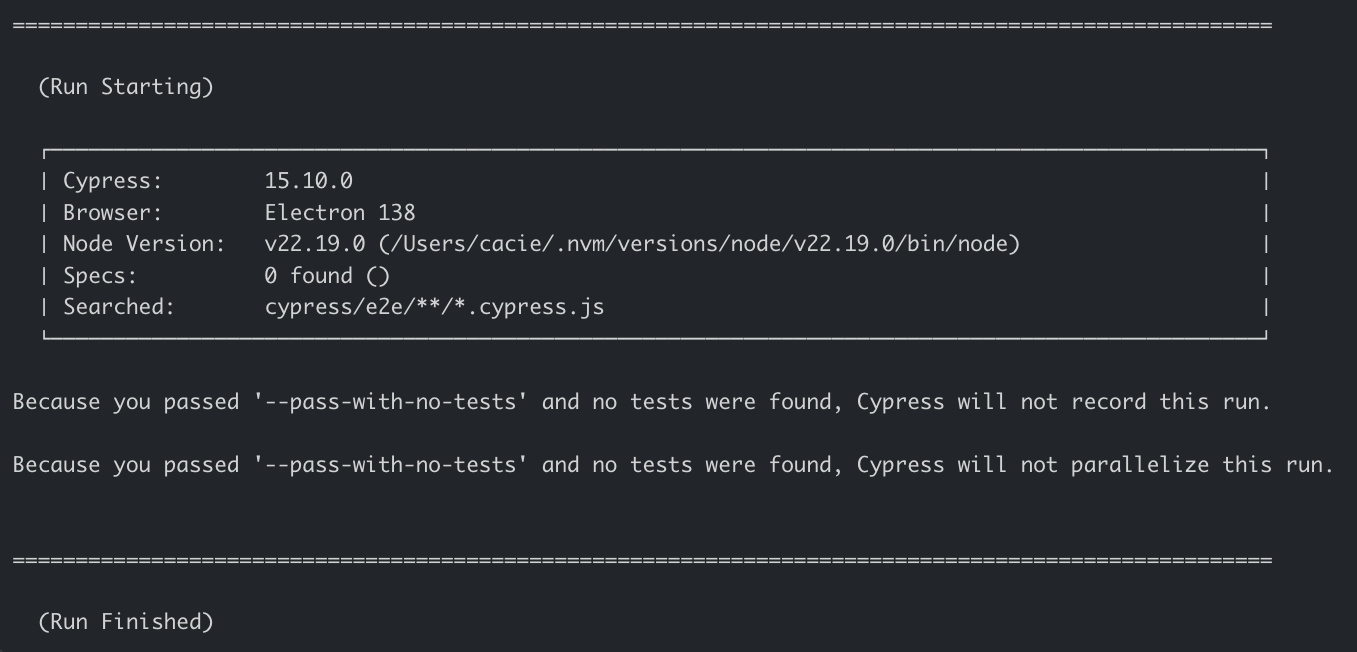
npx cypress run --pass-with-no-testsCypress finds no specs, logs that no files were found, and exits 0.
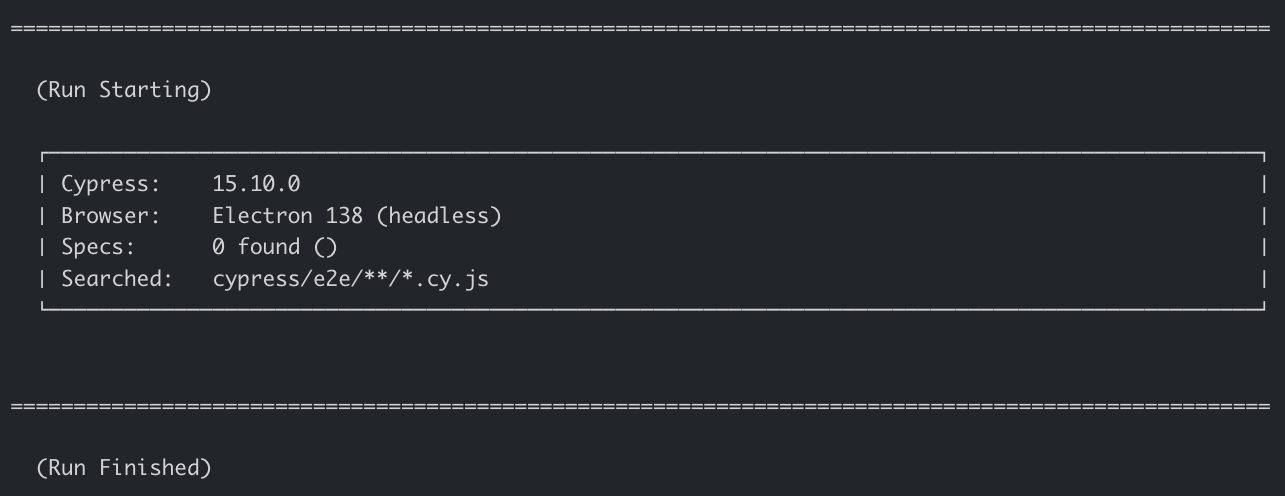
With recording to Cypress Cloud:
npx cypress run --record --key <key> --pass-with-no-testsThe run exits 0. Note that because no specs are found before recording begins, this run will skip recording to Cypress Cloud. There is no Cloud-level visibility into these skipped runs, but there is a message printed to the terminal explaining why the run was not recorded.
One edge case worth noting
If you're combining --pass-with-no-tests with --posix-exit-codes and no specs are found, the exit code will be 0. The --pass-with-no-tests flag takes precedence in this scenario.
Should you use this?
The most important question to answer first is whether a zero-spec result is ever a valid outcome in your workflow.
If it isn't, don't add this flag. Cypress failing when no specs are found is a useful signal. It may mean a specPattern is misconfigured, a file path changed, or a filtered run is quietly excluding more tests than intended. In those cases, the build failing is the right behavior, and you want to investigate rather than skip past it.
This flag is for workflows where zero specs is an expected and acceptable outcome, such as quarantine setups or filtered runs where all tests may be intentionally excluded.
If you're not sure which category your workflow falls into, start without the flag. A failing build is easier to investigate than a passing one that didn't run anything.
Getting started
Add --pass-with-no-tests to your cypress run command wherever a zero-spec result is a valid outcome in your workflow.
If you have questions or want to share how your team is using this, Cypress Discord is a good place to start.
Other changes in 15.11.0
This release wasn't just about --pass-with-no-tests. A few other features worth knowing about:
Features
- React SSR hydration mismatches, finally addressed. If you've been fighting Cypress and React SSR hydration errors, there's a new escape hatch. You can now use a
<script data-cy-bootstrap>tag to manually control bootstrap script injection, which lets React apps usesuppressHydrationWarningto ignore the mismatch. It's a workaround, and we're calling it one, but it unblocks a frustrating class of test failures. - Brotli compression support in the proxy. This one has been sitting open since 2020. If your app serves Brotli-encoded content, Cypress now handles it correctly in the proxy.
- More CI providers recognized out of the box. Cypress Cloud recorded runs now capture metadata from Harness CI, AWS Amplify Console, Buddy, Bitrise, and Cloudbees Unify. This enables you to more easily jump to relevant CI pipelines or commits from Cypress Cloud for those providers.
Full details in the 15.11.0 release notes.
Jennifer ShehaneEnvironment Variable Access in Cypress v15.10.0+: Migrating to cy.env() and Cypress.expose()https://www.cypress.io/blog/environment-variable-access-in-cypress-v15-10-0-migrating-to-cy-env-and-cypress-expose/https://www.cypress.io/blog/environment-variable-access-in-cypress-v15-10-0-migrating-to-cy-env-and-cypress-expose/Starting in Cypress 15.10.0, Cypress.env() is deprecated and will be removed in Cypress 16.0.0.This change is driven by the way Cypress.env() hydrates all Cypress environment values into the browser context, including values a test may never read. This makes it easy to unintentionally expose more data than intended.
We have not seen reports of this being exploited, but we are implementing this deprecation (and future removal) to move Cypress toward safer defaults and more explicit control oTue, 03 Feb 2026 22:50:00 GMT
Starting in Cypress 15.10.0, Cypress.env() is deprecated and will be removed in Cypress 16.0.0.
This change is driven by the way Cypress.env() hydrates all Cypress environment values into the browser context, including values a test may never read. This makes it easy to unintentionally expose more data than intended.
We have not seen reports of this being exploited, but we are implementing this deprecation (and future removal) to move Cypress toward safer defaults and more explicit control over how configuration values are exposed during test execution. Teams may choose to rotate existing secrets as part of their normal security practices, but there is no indication of any event requiring urgency around that action.
What to do if you’re on Cypress 15.10.0+
- Migrate usage of Cypress.env()
- Use cy.env() for sensitive values that should remain outside the browser
- Use Cypress.expose() for values that are intentionally safe to expose
- Review your plugins and upgrade any versions that rely on Cypress.env().
- Some plugins, including @cypress/grep and @cypress/code-coverage, require upgrading to their latest major versions to remove this usage. Please see the migration guide for each plugin as there are breaking changes.
- Set 'allowCypressEnv: false' in your configuration. This causes any remaining Cypress.env() usage to fail with a message explaining the migration path.
If you cannot upgrade yet (Cypress < 15.10.0)
If upgrading immediately is not possible, we recommend moving any use of Cypress.env() that involves secrets or sensitive values to cy.task(). This keeps those values in the Node.js process and out of the browser. An example of this can be viewed here in our docs. This mitigation is only effective in Cypress v12.5.0 and later.
You can see the full set of changes included in v15.10.0 here. For specific Cypress.env migration patterns and examples, view the full guide here.
We are actively working on Cypress v16.0.0. While an official release date has not been published, we anticipate there being plenty of time for necessary migration efforts. Everything needed for our recommended migration patterns is available now.
We’ll continue working with the community to share proven patterns, improve guidance, and smooth adoption as this rolls out.
Jenna Beckett